
How to apply for a job at PolyGrants: a visual step by step guide

Applying for a job here takes about fifteen minutes. Before you start, have your CV ready as a file on the device you are using, because you will be asked to attach it near the end.
The form asks its questions one screen at a time. There is no account to create and no password to remember. This guide walks through every kind of screen you will meet, with a picture of each one, and tells you exactly what to put in it.
Applying, interviewing and being hired at PolyGrants is always free. Nobody may ever ask you for money for a job here. If someone does, report it.
What to have ready
- Your CV, as a PDF, PNG or JPEG file of up to 5 MB. A clear phone photo of a paper CV is accepted.
- An email address you check often. Interview invitations go there.
- A phone number, ideally the one you use on WhatsApp, because most first conversations happen there.
- The years of your studies and your jobs. You will be asked for them one entry at a time.
- About fifteen minutes, on a device you can come back to.
Step 1: choose the role
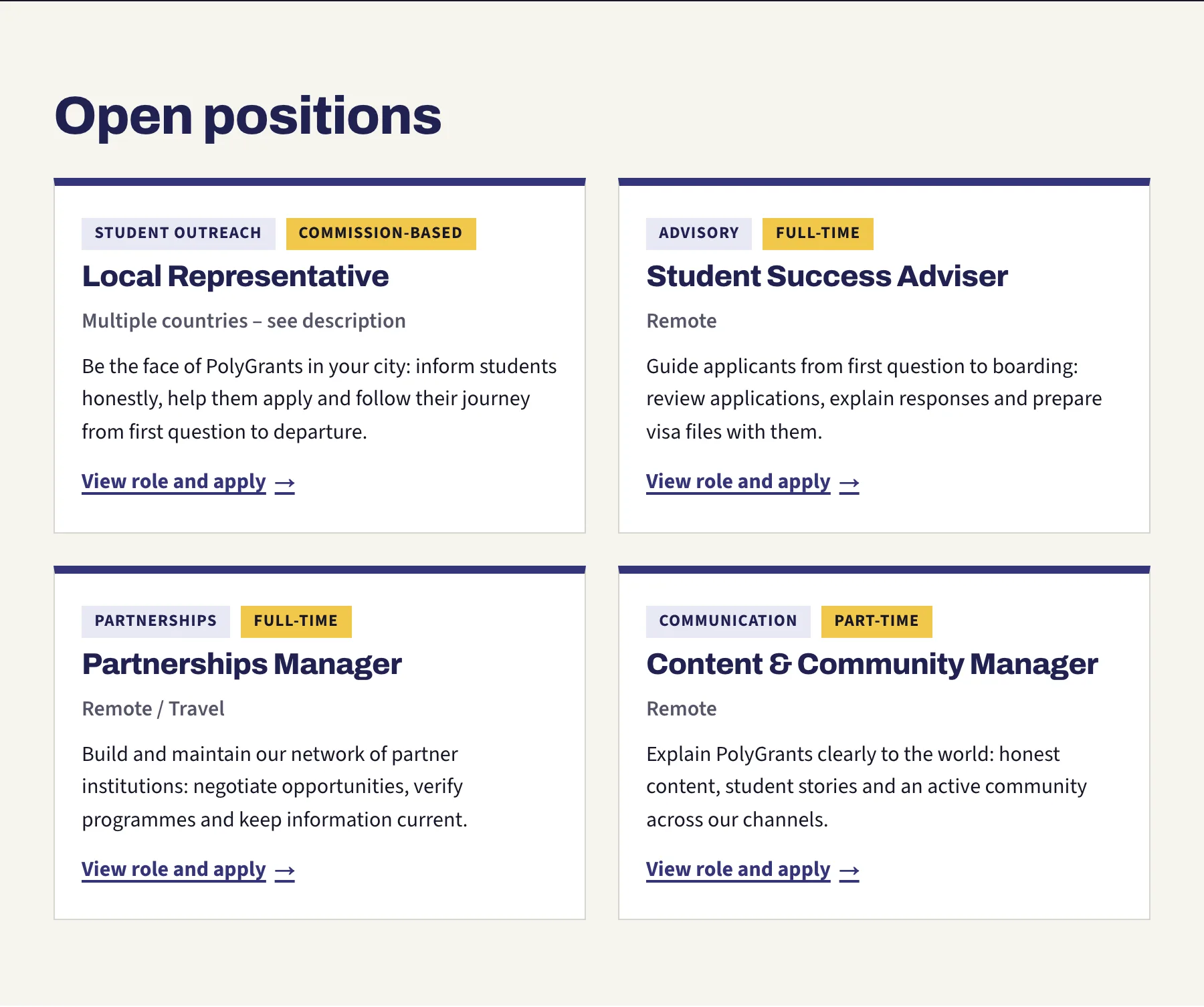
Open the careers page and read the four cards. Two tags sit above each title: the team the role belongs to, and the kind of contract. Read that second tag carefully, because it changes the questions you will be asked later. A commission-based role asks what monthly earnings would make it worth your energy. A salaried role asks for the salary you expect.

Open the role and read the whole page before you apply: what the job is, what you would do, what we look for and what we offer. When you are ready, press the yellow button. It appears twice, at the top and at the bottom, and both go to the same place.
Step 2: the card before the questions
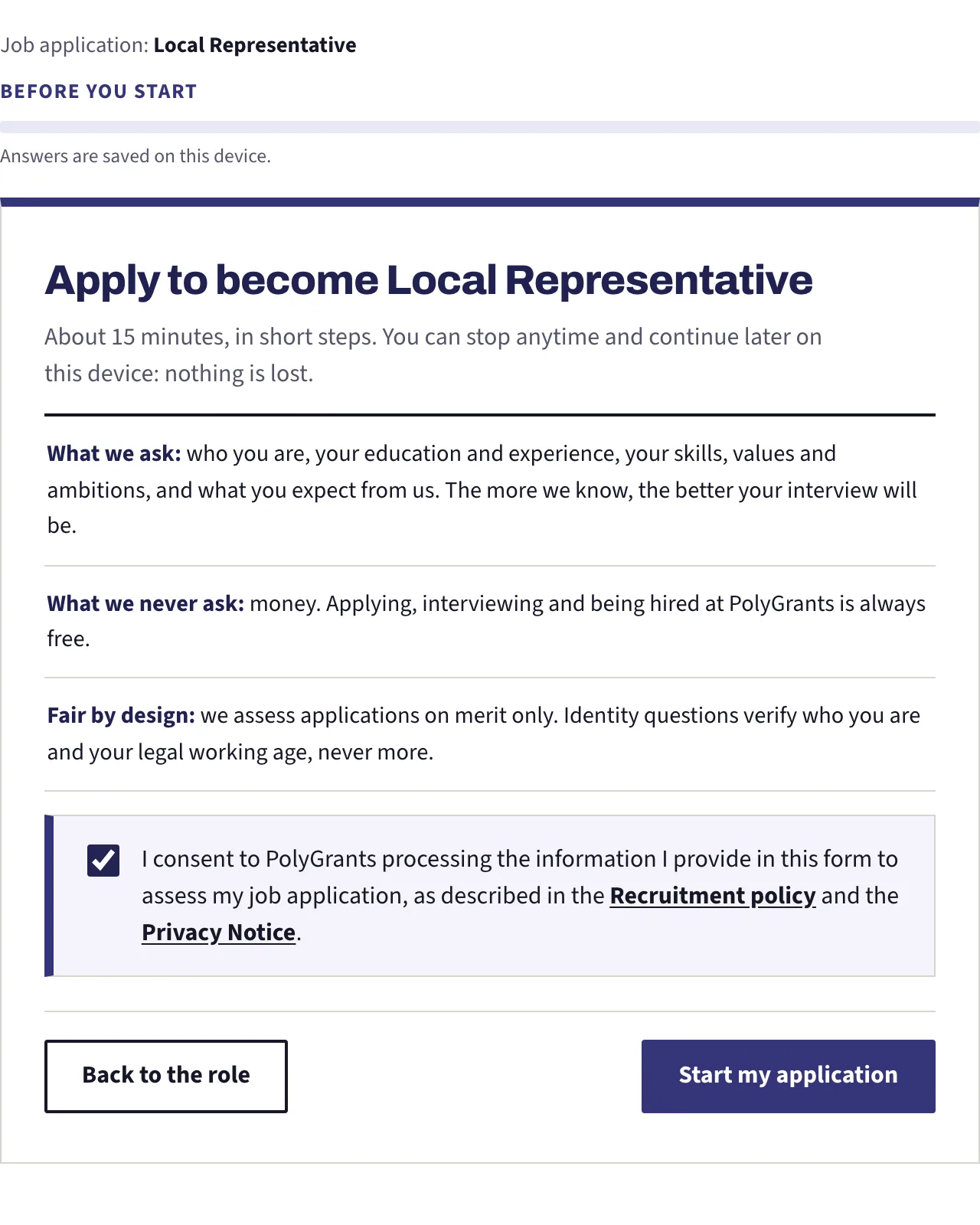
The first card tells you what the form asks for, what it never asks for, and how your application is assessed. Underneath there is one box to tick. It is the consent to have your answers read for this application. The blue button refuses to move until it is ticked.
Read the small grey line above the card: your answers are saved on this device. Understand that before you begin, because it is the thing applicants most often get wrong. There is no account, and nothing is on our side yet. If you clear your browser, browse privately, or pick up a different phone, the answers are gone and you start again. Save and continue later means later on this same device, in this same browser.
Step 3: the questions, one screen at a time
Now the form asks its questions, one per screen, grouped into sections. The line above the bar tells you where you are: the section name, then the question number inside it. The bar fills as you answer. Around fifty questions sounds like a lot, but most of them are a single tap.
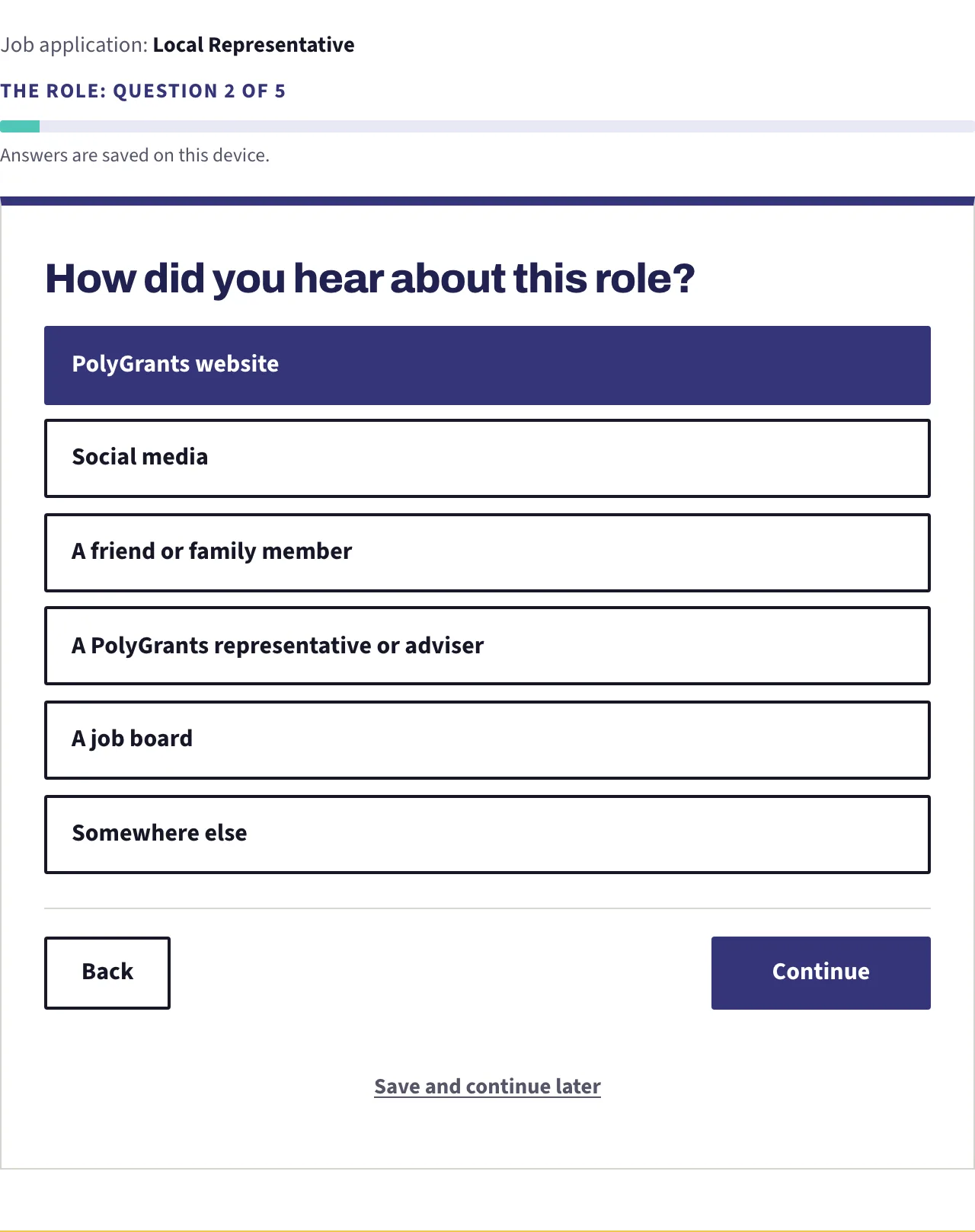
Most screens look like this one. Tap the answer that fits, then press Continue. If you change your mind, tap a different option before continuing. Back always returns to the previous question without losing anything.
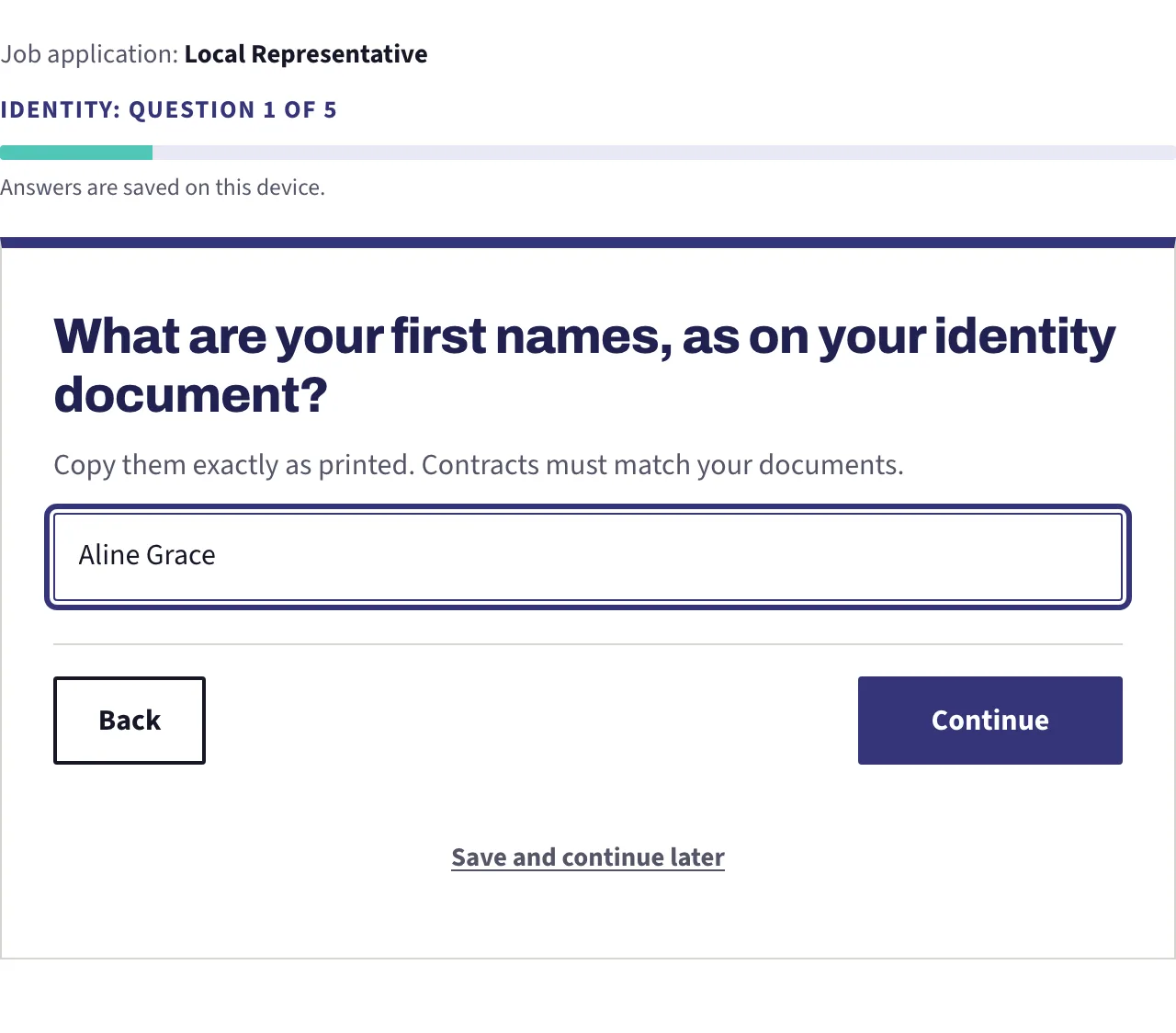
When a screen asks for your names, copy them exactly as they are printed on your passport or national identity card: same order, same spelling, same accents. This is not paperwork for its own sake, because a contract has to match the document you sign it with. First names and family names are asked on two separate screens.
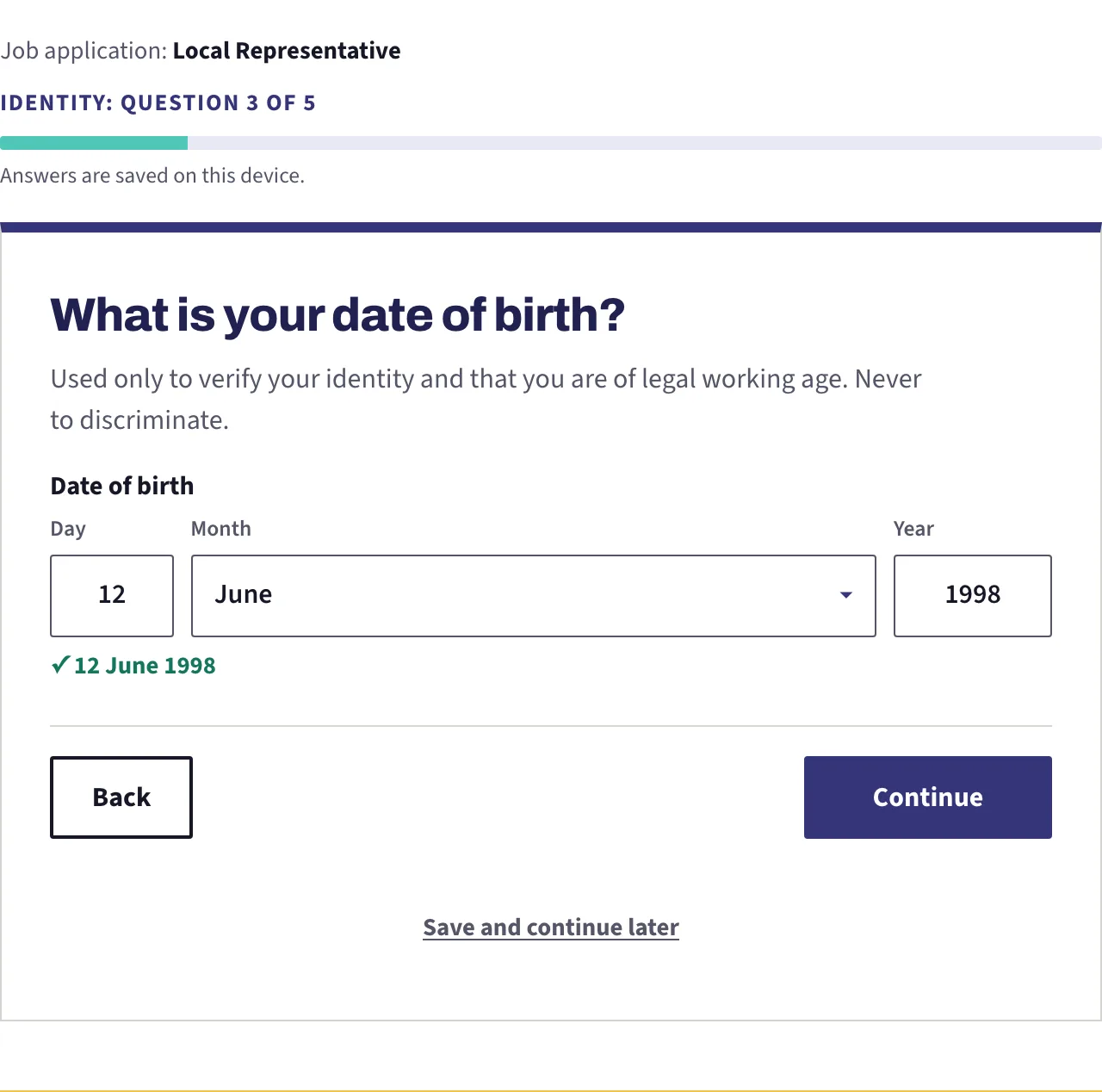
Type the day, choose the month from the list, and type the year in full. If the date makes you younger than 18, the form says so and will not continue.
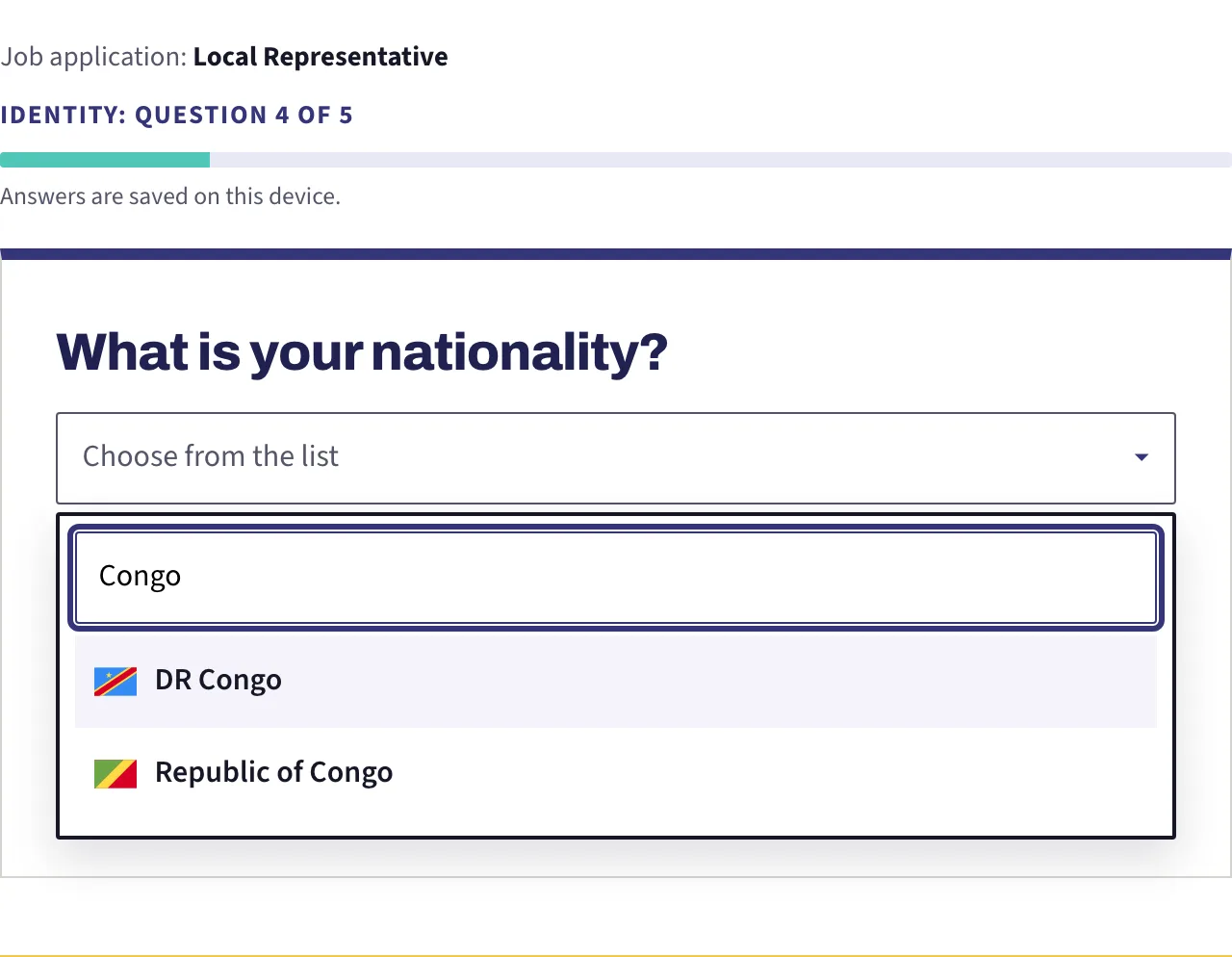
Some questions open a long list. Do not scroll it. Press the box and type the first letters of what you are looking for, and the list narrows as you type. One thing worth knowing: country names stay in English on every version of the site, including the French and Arabic ones. If you are reading in Arabic and you live in Morocco, type Morocco rather than the Arabic name. The flag beside each row helps you confirm you picked the right one.
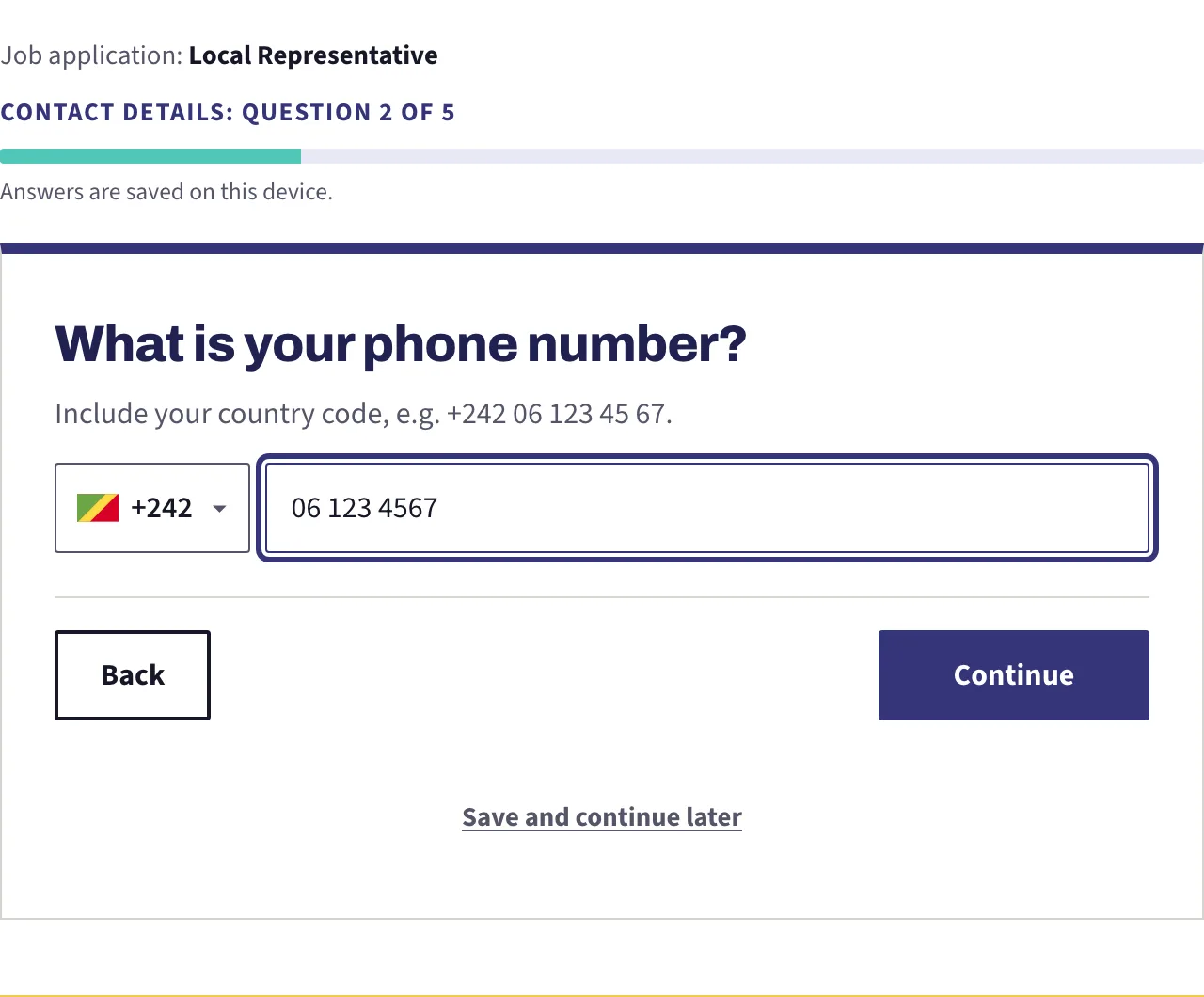
For your phone number, choose your country in the small box first, then type the number without the country code. The spaces appear as you type, in the way numbers are written where you live, so do not fight them. The next screen asks whether we can reach you on WhatsApp, and lets you give a different number if the first one is not the one you use there.
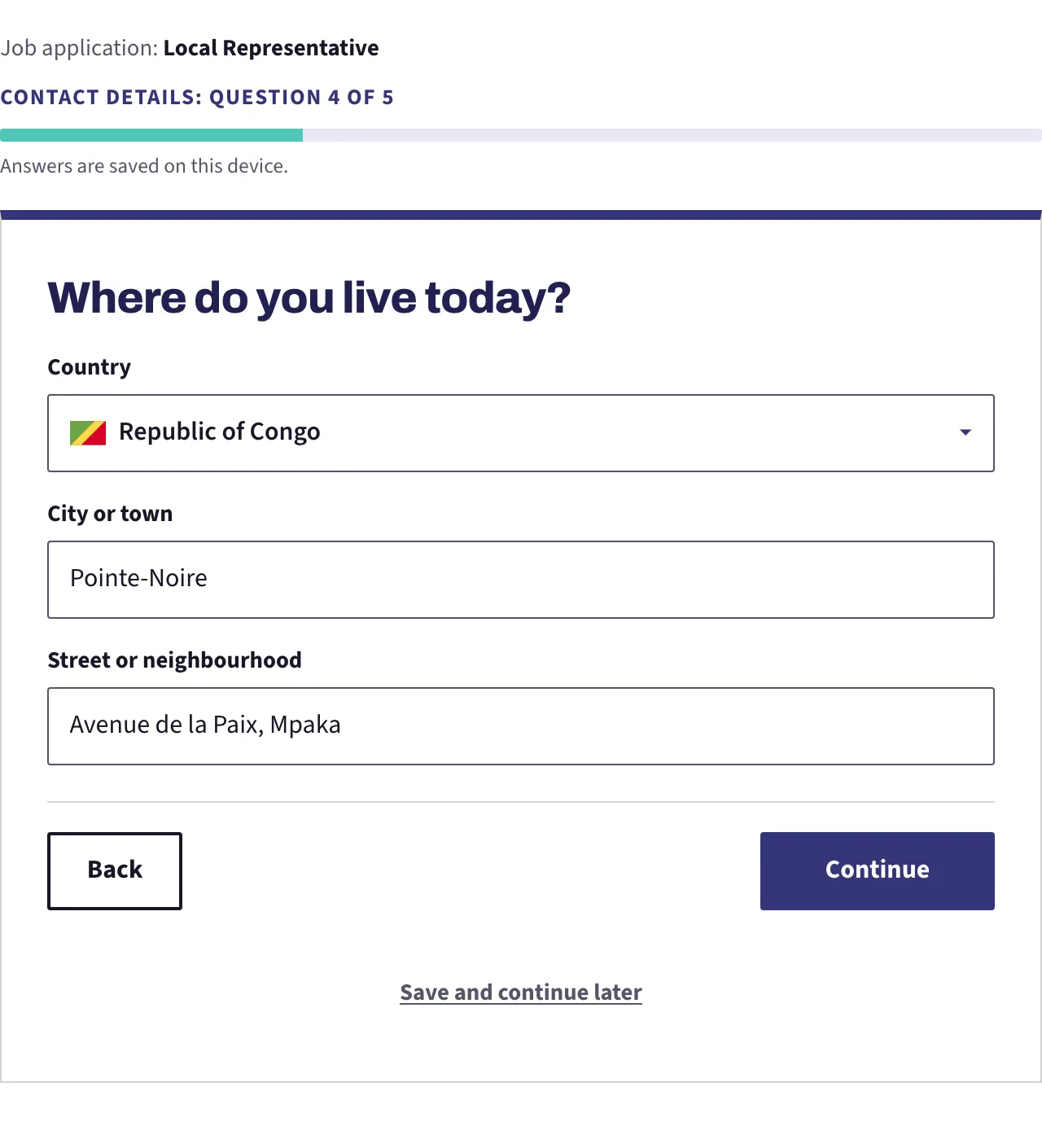
A few screens carry several boxes at once, like the one asking where you live. Fill every box on the screen. Continue will refuse politely and tell you what is missing.
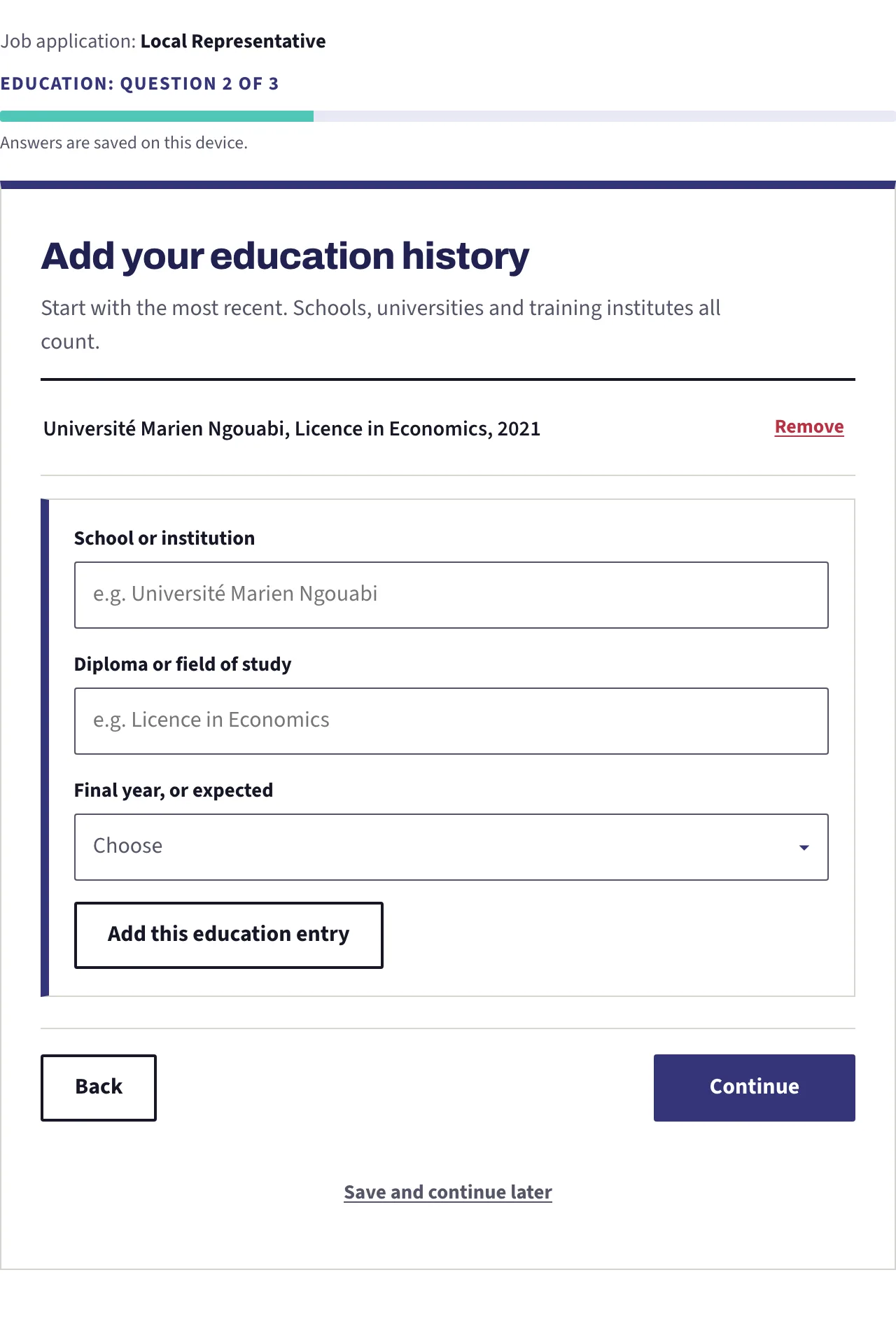
Your education, your jobs, your certificates, your activities and your references are asked as lists you build yourself. Fill the boxes for one entry, then press the Add button underneath. The entry moves up into a list above the form and the boxes empty, ready for the next one. This is where people lose work: if you fill the boxes and press Continue without pressing Add first, that entry was never added. Check that what you typed has appeared in the list above before you move on.
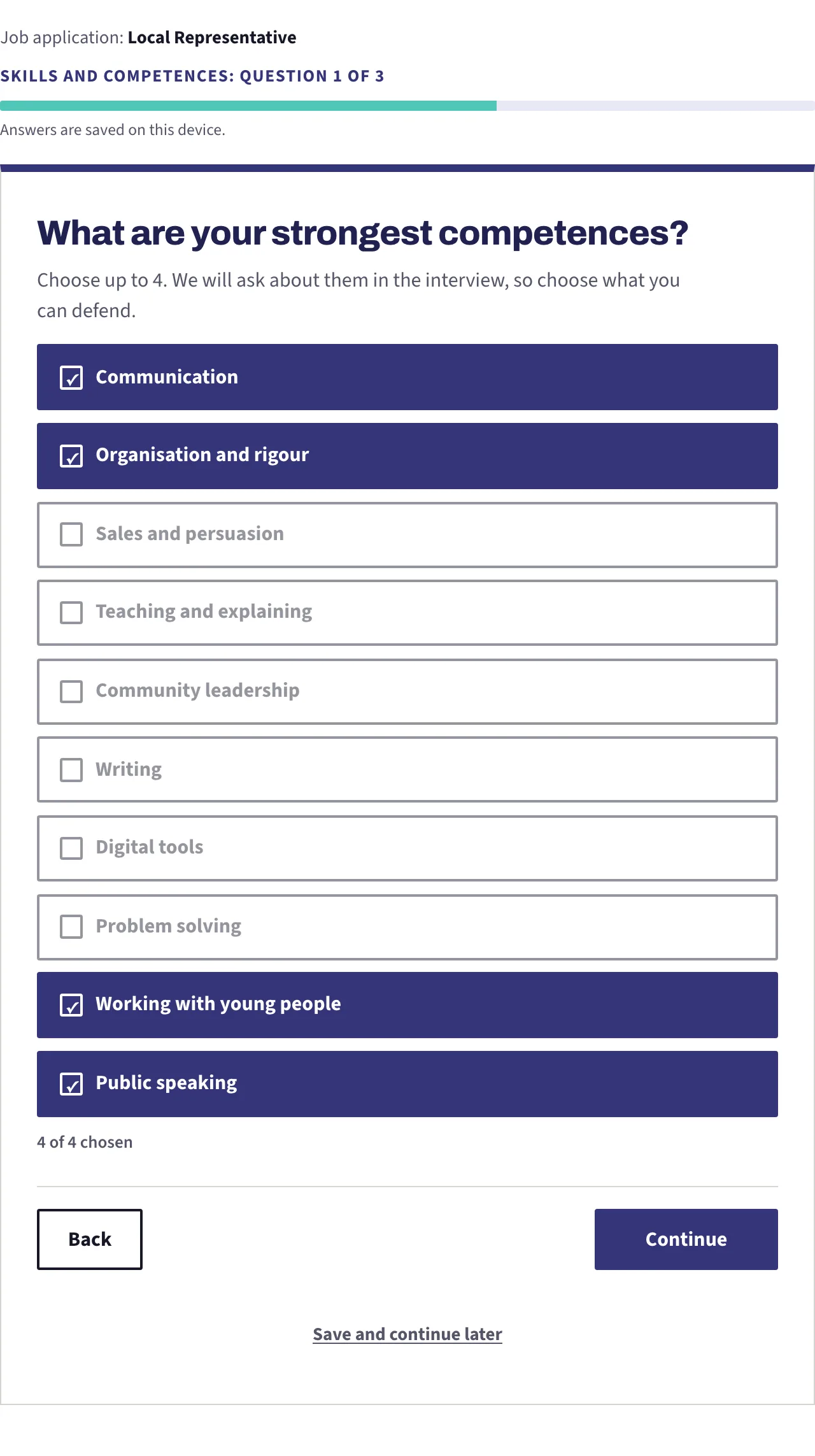
A few questions let you choose several answers, up to a limit. A counter under the options tells you where you stand. Once you reach the limit the remaining options stop responding, which is not a fault: unpick one you care less about and the others wake up. Choose the ones you could defend in an interview, because you will be asked about them.
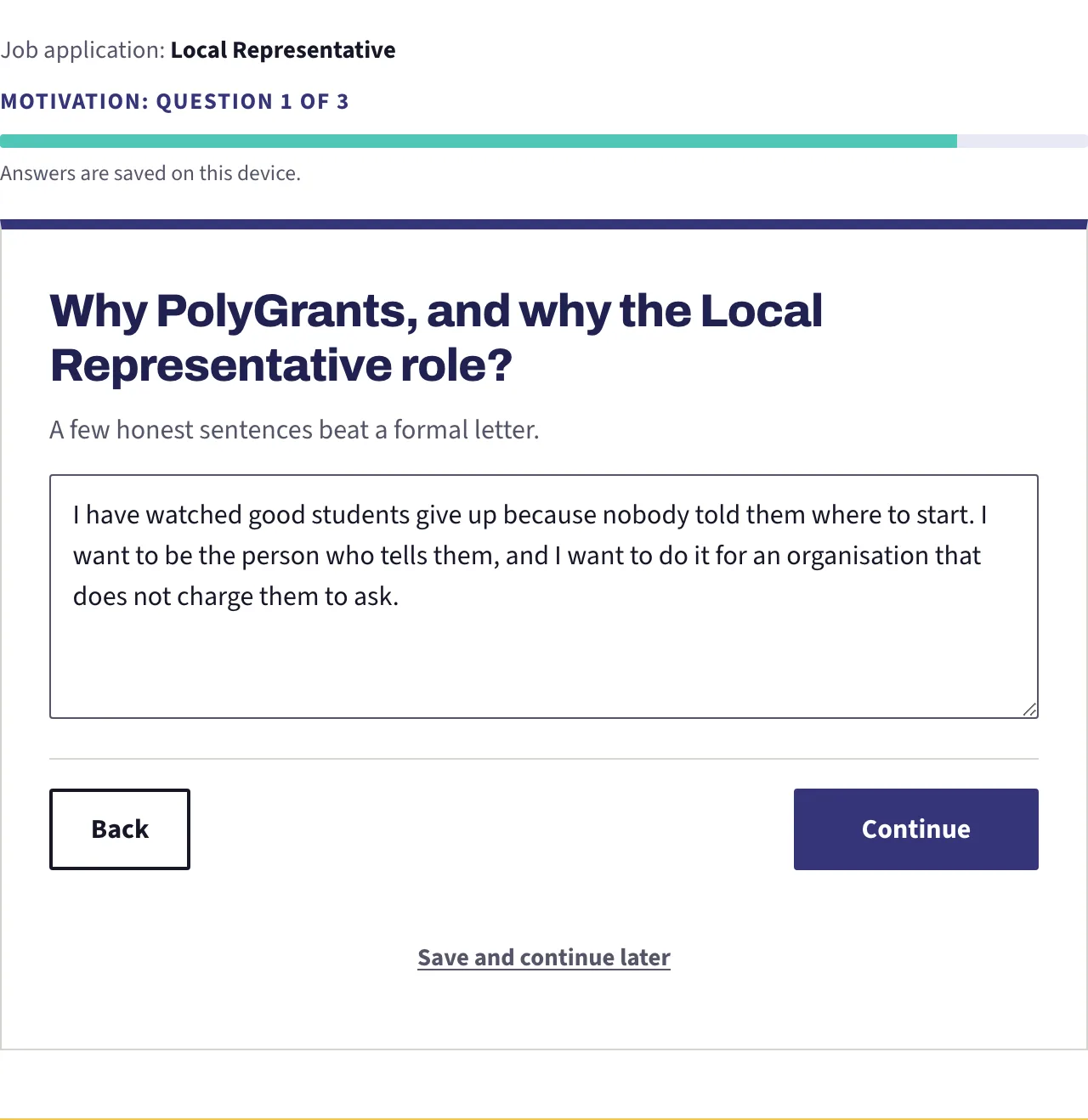
Some questions ask you to write. Keep the answers short and concrete. Say what you have actually done rather than what you are generally like: six students helped last year tells us more than a paragraph about being motivated. Questions marked Optional can be left empty, and leaving them empty costs you nothing.
Step 4: your documents
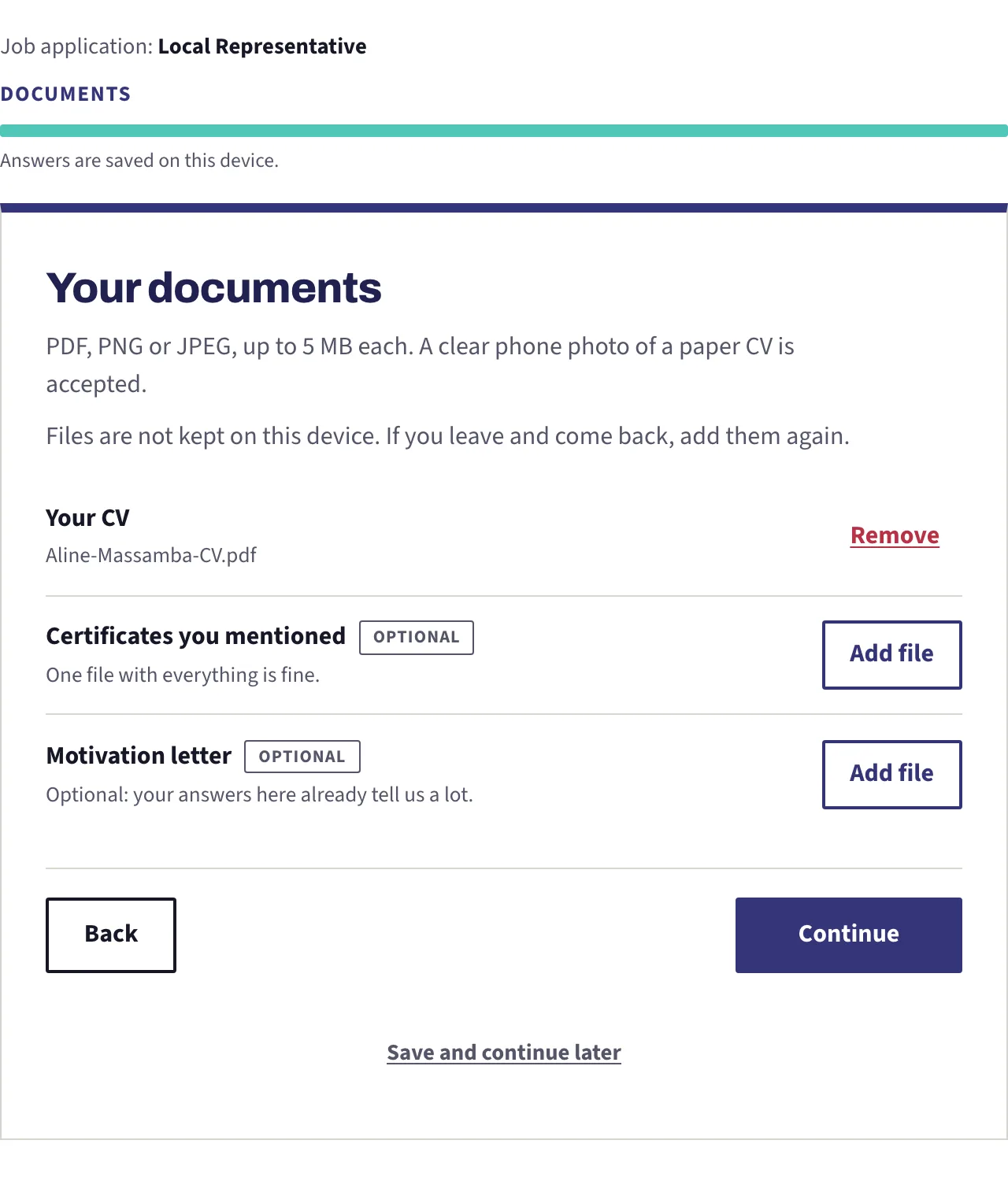
One file is required: your CV. PDF, PNG or JPEG, up to 5 MB each. If you have no digital CV, a clear photograph of a paper one is accepted, so a phone is enough. The certificates slot only appears if you said earlier that you hold some, and one file with everything in it is fine. The motivation letter is optional, and your written answers already say a great deal.
Read the second grey line on that screen: files are not kept on this device. If you leave the form and come back later, your answers are still there but your files are not, and you add them again. It takes a moment, and it beats a file sitting in a browser you share.
Step 5: check your answers
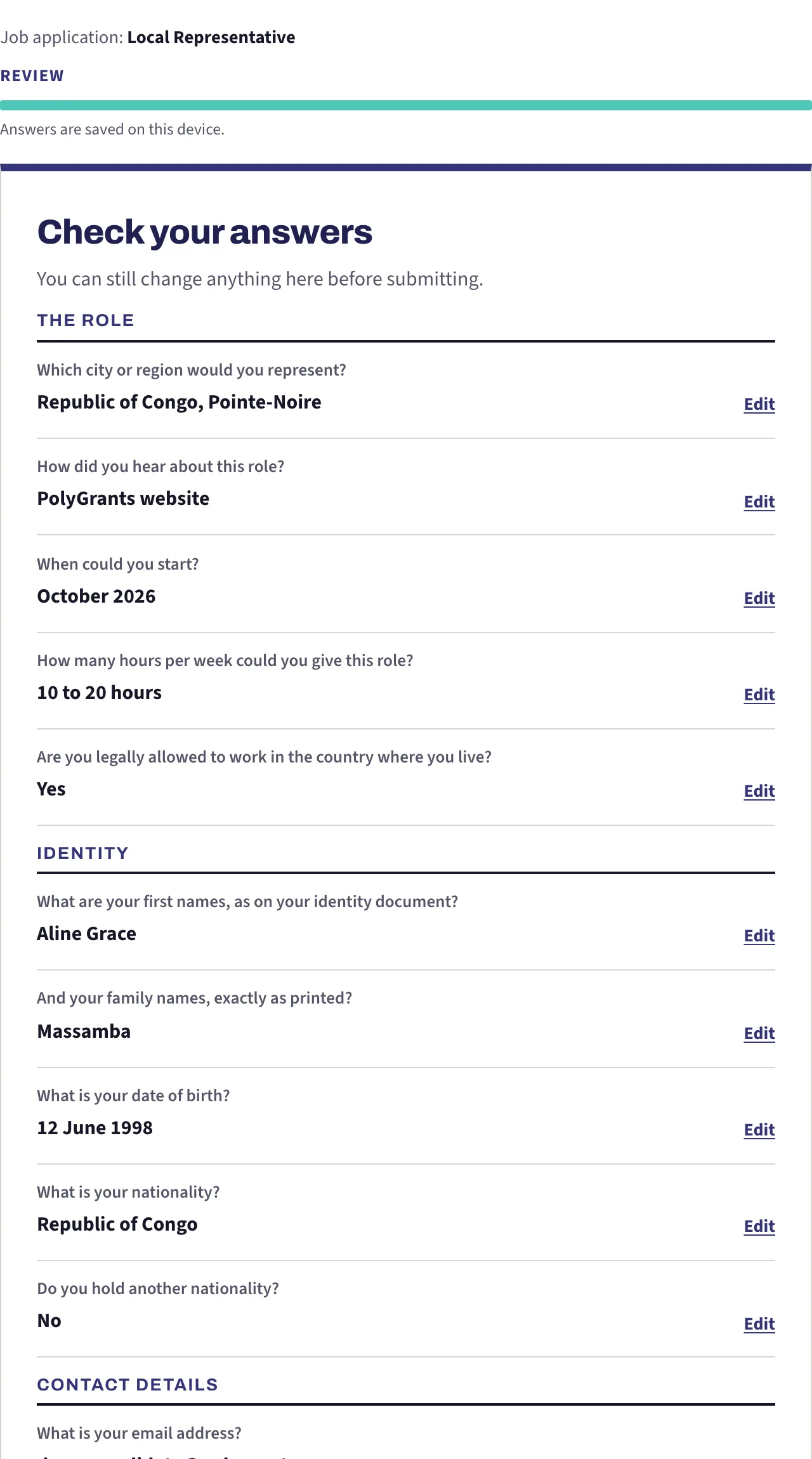
The review screen lists everything you answered, section by section, with an Edit link on every row. Press one and the form takes you back to that single question. Answer it again and you return straight to the review rather than walking the whole form. Read this screen properly. It is the last place where a mistyped year or a wrong email address costs you nothing to fix.
Step 6: the declarations and the security check
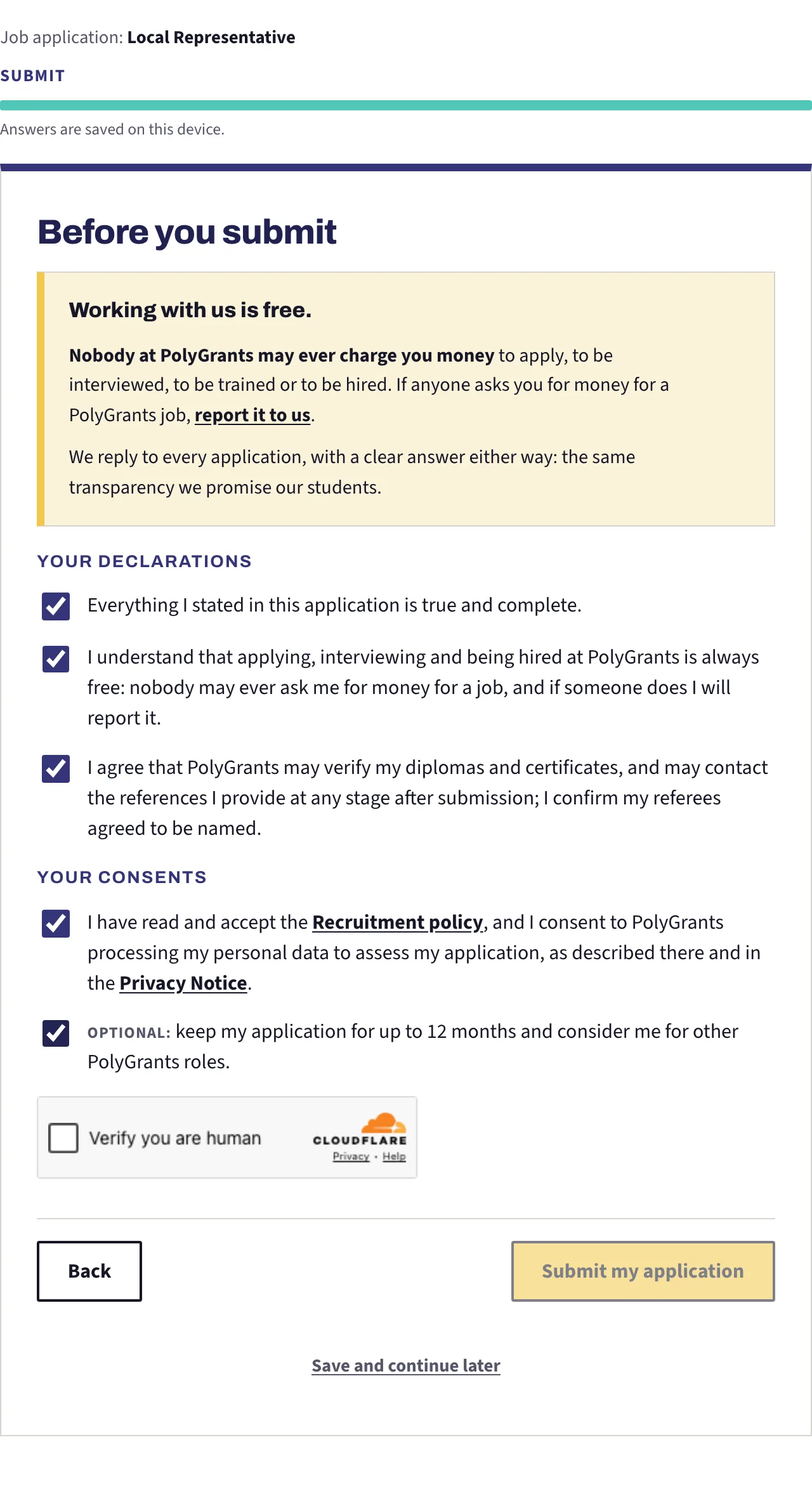
The last screen asks you to agree to three statements: that your application is true, that you understand working here is always free, and that we may verify your diplomas and contact the references you named. Under them is the consent that lets us assess your application, which is required, and a second one that is optional: it lets us keep your application for up to twelve months and consider you for other roles.
Below those sits a small Cloudflare box that confirms you are a person and not a machine. Tick it and let it finish. The Submit button stays pale and unresponsive until every required box above it is ticked and that check has passed. If the button will not press, one of the two is missing.
Read the yellow notice at the top of that screen and take it seriously. Nobody at PolyGrants may ever charge you money to apply, to be interviewed, to be trained or to be hired. There is no fee at any stage, for any role, from anyone. If a person contacts you claiming otherwise, they do not speak for us, and we want to know.
Report anyone who asks you for money
Step 7: what you see once it has gone
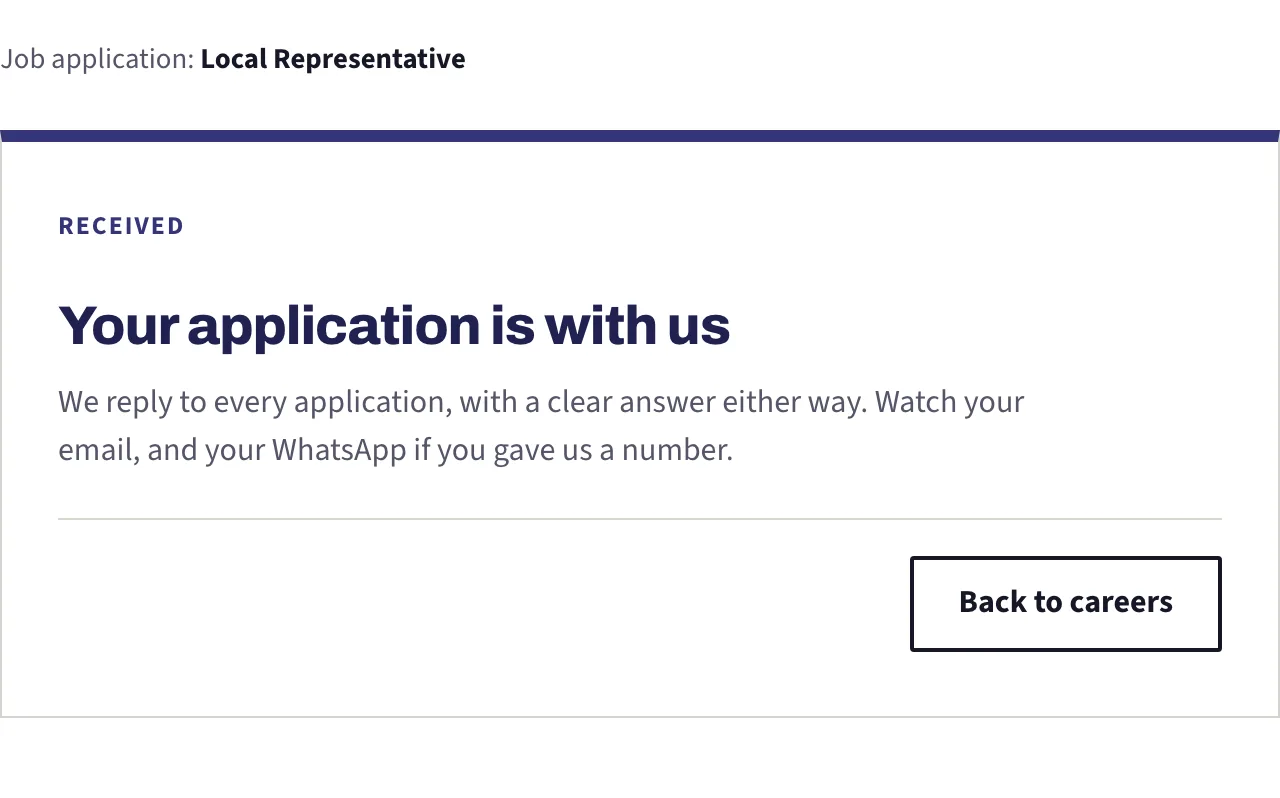
This card is the confirmation. There is no email receipt to wait for, so this screen is what tells you it worked. Every application gets an answer either way, so watch your email, and your WhatsApp if you gave us a number there.
The four things applicants get wrong
- Assuming the answers are safe. They live in this browser, on this device, not in an account. Finish on the device you started on.
- Filling an entry and forgetting to press Add. Check the list above the boxes before continuing.
- Attaching files, leaving, and coming back. Answers survive, files do not.
- Pressing Submit before the security box has settled. The button stays pale until it has.
Frequently asked questions
Do I need an account? No. There is nothing to create and no password to remember. That is also why the answers stay on your device.
Can I apply for two roles? Yes, and each role keeps its own answers, so applying to a second one does not disturb the first. You can send one application per role per day.
Do I have to answer everything? Every question without the Optional tag, yes. The form will not let you past a required question that is empty.
I do not have a CV. Write one page with your schooling, your jobs and your contact details, photograph it clearly, and attach the photo. A plain honest page is better than nothing.
Are the questions the same for every role? Almost. A few change with the contract: the field role asks which city you would cover, and the pay question differs between a commission role and a salaried one.
When will I hear back? We reply to every application with a clear answer either way. Watch your email and your WhatsApp.
Will I ever be asked to pay? Never. Not to apply, not to interview, not to be trained, not to be hired. Anyone who asks you for money for a job here should be reported.
নিজের সুযোগগুলো দেখতে প্রস্তুত?
আপনার PolyGrants আবেদন তৈরি করা 100% ফ্রি। আমরা আপনার জন্য ইতিবাচক উত্তর আনলে এবং আপনি তা গ্রহণ করার সিদ্ধান্ত নিলে তবেই আপনি টাকা দেন।
আমার আবেদন শুরু করুন